







July 08, 2026
Microsoft Outlook - the third most widely used email platform. Unfortunately, it is never meant for managing customer relationships.
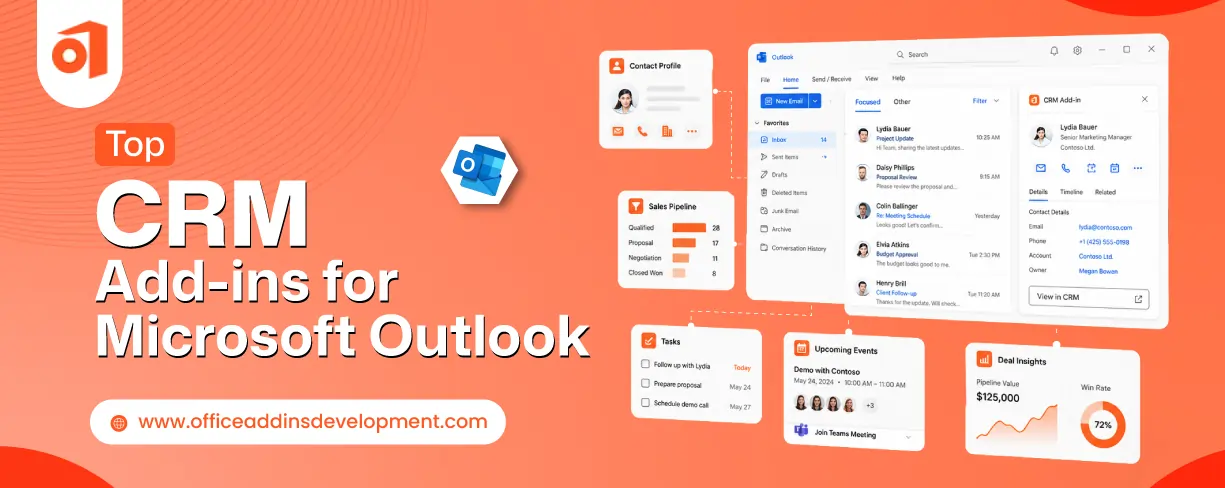
But it allows you to integrate CRM functionality directly within Outlook by means of plug-ins. So, you can get a single view of customers, log email conversations, and receive actionable insights into the inbox.
Now, with tons of CRM plug-ins for Outlook out there, it would be a challenging task for you to choose one. So, this blog will differentiate the best CRM add-ins for Outlook based on the functionalities they provide.
Why Use CRM Add-ins in Outlook?
Outlook doesn't come with built-in CRM facilities. If your team is using a separate CRM software, then you might not be aware of the consequences that can affect your workflow.
Create smarter spreadsheets with innovative Microsoft Excel add-in development
Let's look at some of the reasons to use CRM add-ins for Microsoft Outlook:
- You can instantly access customer information without leaving Outlook, which enhances customer data management.
- All the conversations can be linked to a specific category (lead, contact, account, sales opportunity, tickets) based on what they represent.
- You can also create a task directly from the conversations without separately navigating to the CRM portal.
- You can get reminders for the created task linked to customer data so that there is less chance of missing the deadline.
- Due to logged conversations, you can get an idea of how to tailor the communication for each customer, and you also don’t need to repeat the conversations.
- Better collaboration can be achieved due to shared customer context between sales, marketing, and customer service teams.
- All the activities associated with sales pipeline management become less energy efficient as they can be directly done within Outlook.
Read More: Top 10 Outlook Add-ins to Secure Your Email
Best CRM add-ins for Outlook
Lets breakdown the top-ranking Outlook CRM tools with underlying features, pricing structure, and strength & weaknesses.
1. Microsoft Dynamics 365
Key features
- It links emails, meetings, appointments, or calls to a relevant category (Account, lead, contact, opportunity) from Outlook only.
- It can also create new records (Account, contact, lead, opportunity, cases) directly while viewing an email.
- It allows the use of email templates, informative articles, and sales materials (brochures, catalogs, e-books) during email composition.
- It has AI facilities that can be used for creating more personalized emails, suggesting suitable meeting times, and gaining insights from stored data.
Pricing
Microsoft Dynamics 365 subscription starts at $65 per user/month. Its premium subscription will cost you $150 per user/month. (billed annually)
Pros
- Connects with Outlook, Excel, Teams, Power BI, and Power Platforms
- Easily scalable for growing and developing businesses
- Integrates AI capabilities to automate workflows
- Reduces data silos with a single data storage source
Cons
- Pricing is pretty much high
- Less user-friendly
- Requires customizations for more specific needs
2. Salesforce Sales Cloud
Key features
- Allows access to CRM records related to any email in Outlook
- Logs every email conversation related to a customer in a single thread
- Automatically sync email activities, tasks, and calendar events (Einstein Activity Capture)
- Outlook meeting invites get directly saved to Salesforce and linked with the related customer
Streamline communication workflows through intelligent Teams add-in development
Pricing
Salesforce Sales Cloud pricing structure begins with $25 per user/month and scales up to $330 per user/month. (billed annually)
Pros
- Highly adaptable to existing workflows
- Connects with multiple business platforms
- Provides mobile accessibility
Cons
- Requires continuous internet connection
- Limited functionality in mobile apps
3. HubSpot Sales
Key features
- Notifies when someone opens an email and clicks on a link or attachment
- Shows the side panel representing all details related to the email you are currently viewing
- Provides a centralized library of built-in email templates
Pricing
HubSpot Outlook contact management tools can be used free of cost. For more facilities, upgrade to the Sales Hub starter plan for $9 per user/month, and it goes to $150 per user/month for enterprise-level functionalities. (billed annually)
Pros
- It offers free CRM integration in Outlook
- Automatic logging of conversations
Cons
- Less customizable for advanced workflows
- Not suitable for large enterprises and businesses
4. Zoho CRM
Key features
- Create new leads or contacts from receiving emails, and also convert leads to contacts when prospects are qualified
- View CRM records related to any customer directly inside Outlook
- Insert notes for meetings or appointments and link them to the related CRM record from Outlook
- Monitor the progress of any deal to ensure consistency in sales pipeline management.
Pricing
Zoho Outlook add-in subscription begins with $14 per user/month for the standard plan, whereas the premium ultimate plan will cost up to $52 per user/month. (billed annually)
Pros
- Clean layout and logical flow
- Introduce automation to reduce repetitive tasks
- Flexible to scalability
Cons
- Initial setup for integrating might be challenging
- For a large dataset, synchronization can get delayed
5. Pipedrive
Key features
- Automatically identifies incoming email and shows its related records immediately
- Suggest creating a new record after verifying the absence of that record in CRM
- Manage your sales pipeline directly from Outlook
- Get notification for due tasks and activities
Pricing
Pipedrive's basic customer engagement tools come under $14 per user/month. For advanced features, you can go for the premium package of $79 per user/month. (billed annually)
Pros
- Availability of a wide variety of email templates
- Capable of integrating 500+ platforms
Cons
- The side panel can't show complex CRM data clearly due to the limited area
- Conversations before integration are not synced without manual interaction
Automate presentation creation with intelligent PowerPoint add-in development services.
6. Salesflare
Key features
- Customizable dashboards to tailor the visualization based on your choice
- Provides document storage facilities
- Logs data related to meetings, phone calls, and emails
- Allows the creation of email marketing ads through marketing tools
Pricing
Salesflare pricing begins with $29 per user/month for basic features, while to experience more facilities, it offers the premium plan of $99 per user/month. (billed annually)
Pros
- Accessible on mobile devices, including IOS and Android
- Works best for team collaboration
- Email logging with a single click
Cons
- Linking an email to the related record requires user approval, making the email orphan if the user forgets
- For advanced reporting, complex CRM workflows, and customization of the pipeline, navigating to the Salesflare portal is required.
7. eWay-CRM
Key features
- Provides a 360-degree view of the customer to the entire team
- Allows sending email using pre-built templates and auto-population of required fields
- Allows converting a confirmed deal into a task and assigning it to a particular member
- Summarizes long email threads through AI support
Pricing
EWay Outlook CRM add-in offers a free plan for leveraging basic functionalities. Whereas its highest range plan will cost you around $36 per user/month, providing AI support with all CRM facilities.
Pros
- Compatible with platforms like Windows, macOS, Android, and IOS
- Provides good customer support services
Cons
- It fails to manage duplicate records during integration
- Mobile apps are not as ideal as the desktop versions
- It is heavy weight add-in
Common Challenges and How to Overcome Them
Even the best CRM add-ins for Microsoft Outlook can result in failure if common bottlenecks are ignored. Here are some of the challenges and corresponding solutions related to CRM adoption in Outlook.
1. User adoption barrier
Challenge: Employees are not ready to adapt CRM functionality into their existing workflows
Solution:
- Give a demo before deployment
- Introduce time-saving features
- Disclose basic functionality before going to advanced ones
2. Data synchronization issues
Challenge: Any updates made or new data created do not get reflected in the other system
Solution:
- Use a CRM tool that provides two-way syncing
- Perform regular sync audits
- Check integration setup during deployment
3. Compatibility issues
Challenge: Some CRM extensions for Outlook do not support all versions of Outlook
Solution:
- Verify with the vendor before choosing
- Take a trial in pilot mode
Build custom OneNote add-ins for seamless collaboration and information sharing
4. Performance drop
Challenge: Some CRM plug-ins can affect the performance of Outlook
Solution:
- Keep Outlook and the add-in updated
- Remove unnecessary emails and records
- Choose a lightweight add-in
5. Security and compliance risk
Challenge: Customer records travel between many platforms after CRM adoption, increasing security concerns
Solution:
- Select an add-in providing multi-factor authentication, encryption of confidential data, role-based access, and regular audit trailing
Improve Customer Relationship Management in Outlook
Handling contacts, sales, marketing, customer services, and customer data from a separate platform will initially create no problems. But when business volume goes out of control, at that point, a realization hits for switching towards Outlook integrated with a CRM environment.
Outlook add-ins for customer management will provide the CRM services directly in an environment to which you are familiar with. It not only saves contacts but also remembers the past conversations and doesn't let you miss any follow-ups.
This blog has narrowed down the list of top Outlook add-ins to manage customer engagement, so that you can pick an ideal tool without any confusion.
But to experience a more customizable CRM performance in your inbox, you can approach Outlook add-in development companies.
FAQs
1. Can CRM add-ins automatically track emails?
Yes, many CRM add-ins have the ability to automatically track emails, but what kind of emails will get automatically tracked depends on the CRM add-in or on its settings (the auto-tracking feature might be turned off for some or all kinds of emails).
2. Are Microsoft Outlook CRM add-ins secure?
Yes, modern CRM add-ins for Outlook generally come with high security functionalities such as multi-factor authentication, data encryption, role-based access control, and audit trailing.
3. Do CRM add-ins sync contacts and calendar events?
Yes, most of the CRM add-ins can sync contacts and calendar events between Outlook and the CRM platform, but it generally depends on the chosen CRM add-in and how the integration is configured.
4. How difficult is it to install a CRM add-in in Outlook?
For most of the time, installing the CRM add-in is very easy and only takes a few minutes. But in some cases, the difficulty can depend on the CRM platform.
5. What features should I prioritize when selecting a CRM add-in?
Key features to be considered while selecting a CRM add-in:
- Email tracking and logging
- Contact and lead management
- Calendar integration
- Two-way synchronization
- Sales management
- Marketing automation
- Mobile accessibility
- Security and compliance

Kapil Panchal
A passionate Technical writer and an SEO freak working as a Content Development Manager at iFour Technolab, USA. With extensive experience in IT, Services, and Product sectors, I relish writing about technology and love sharing exceptional insights on various platforms. I believe in constant learning and am passionate about being better every day.


 15 Best AI Email Assistants Worth Trying in 2026
July 07, 2026
 Top CRM Add-ins for Microsoft Outlook
June 23, 2026
 Best Add-ins to Sync Excel Data to PowerPoint
June 02, 2026





 Say Hello
 Inquire